https://drive.google.com/drive/folders/1hBr5dRx5zQ0hf1R2mCFVSaI3S0P-3qRV?usp=sharing
Sound via Stable Audo
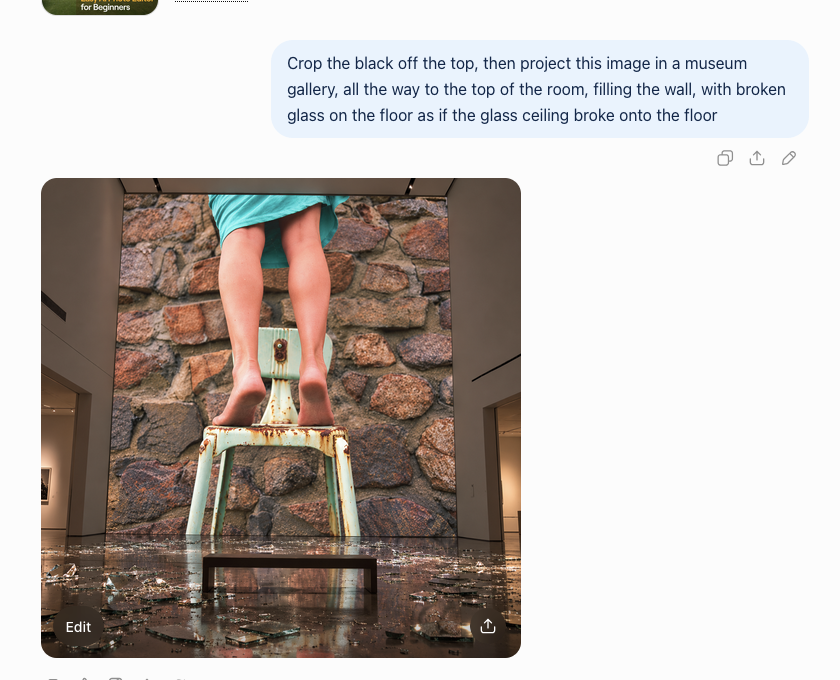
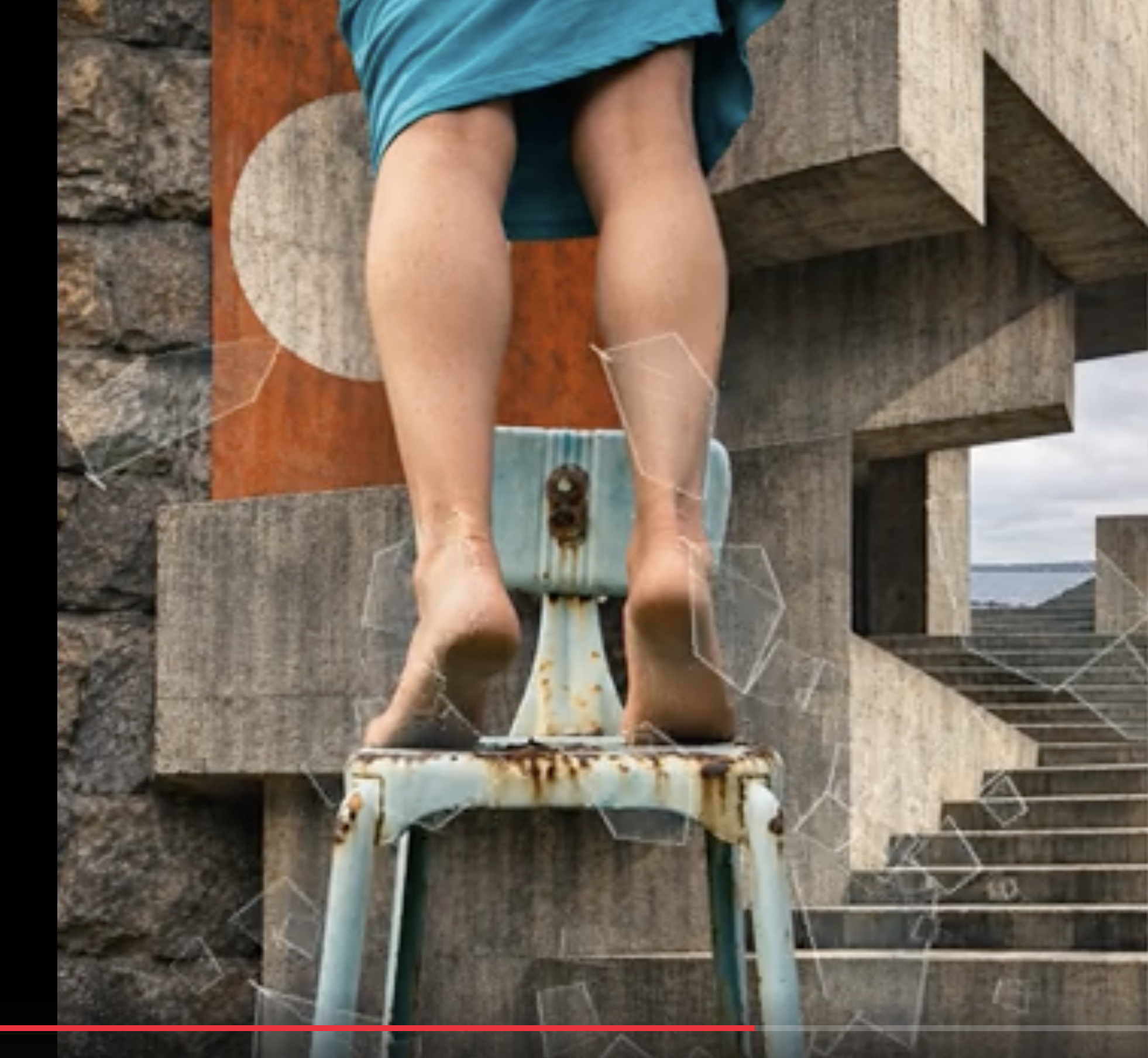
Video of my computer trying to interface with Gallery made in ChatGPT
Gallery-Studio 2
START-HERE
1. Extract the ENTIRE ZIP into a folder on your computer.
2. You need Node.js version 22.12 or newer installed (one-time prerequisite).
3. Open Terminal (Mac) or PowerShell (Windows) in the extracted Gallery-Studio folder.
4. Run:
node start.mjs
5. Open http://127.0.0.1:5173/ in Chrome or Edge.
Keep the terminal window open while using the app. Press Ctrl+C to stop it.
There is no npm install, build step, account, or cloud upload required.
Do not open app/index.html directly: use the local address above.
The app starts with a demonstration exhibition. A portable copy is also in
samples/studies-in-light.gallery.zip. Use Open inside the app to load it.
IMPORTANT FOR YOUR WORK
Use Save project inside the app to download your exhibition WITH its media.
Keep that .gallery.zip file as your backup and use it to transfer your work.
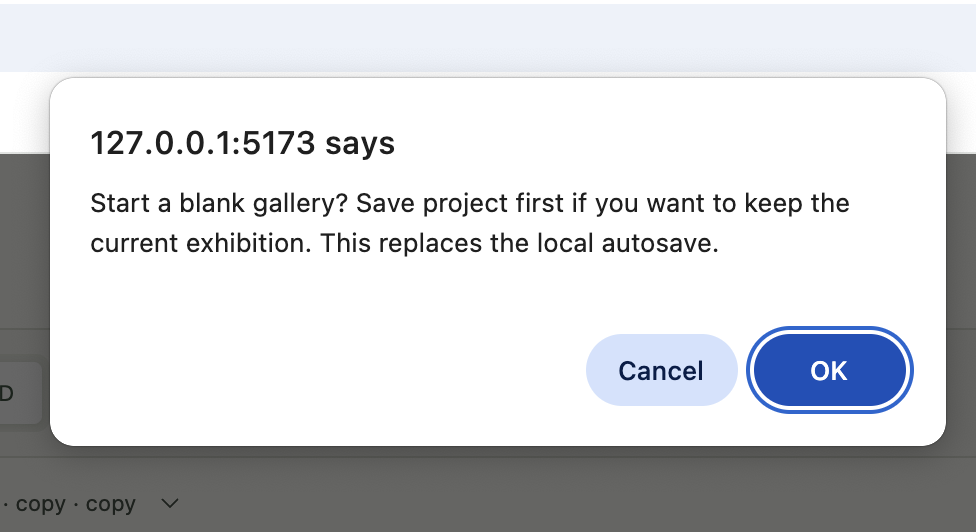
Browser autosave alone is not a backup. Starting New replaces local autosave.
Use the same localhost address and browser to recover your existing autosave.
USER-GUIDE.md explains drawing rooms, importing media, arranging walls,
walkthrough navigation, soundtracks, scenes, and project saving.
This is a local prototype. Lighting is approximate, and projector optics,
real brightness, beam blending, and physical color accuracy are not simulated.
Safari and the artist's actual hardware/media have not been directly validated.
Gallery Studio — Artist Guide
Start with START-HERE.txt to launch the app.
Design a space
Switch to Plan. Choose Draw room, click each corner, and select Close room. This replaces the perimeter while retaining matching wall IDs and identifying affected projections. Invalid crossing outlines are rejected.
Choose Draw partition and click its start and end. Grid and endpoint snapping help connect walls. Intersecting partitions split into connected segments; existing doors are preserved, and junctions through doors are rejected.
Select a wall from the architecture list or plan. Drag its endpoint handles or edit coordinates, height, thickness, and name in Properties. Shared endpoints move together.
Choose Add door on a selected wall. Edit offset from the wall's start, width, height, and hinge direction. The door is a real opening in 3D and cuts through projections. Door clearance and overlap are validated.
Add a plinth, bench, or panel from the bottom of the sidebar. Drag it in plan; edit its dimensions, position, and rotation in Properties.
Measurements use meters internally. The display supports metric and feet/inches; imperial fields accept decimal feet or a value such as 5' 6". Object rotation is in degrees. Wall endpoints are wall centerlines; thickness extends equally to both sides. Account for that thickness when entering dimensions measured between finished interior surfaces.
Arrange media
Add your media accepts JPEG, PNG, WebP, browser-decodable MP4/WebM, and MP3/WAV. Files are decoded to check compatibility and retained as originals. A filename extension alone does not establish codec support; H.264 MP4 is a useful video interchange format.
Select a wall, then click an image/video thumbnail to place a region on it. Several regions can occupy either wall face. Audio thumbnails assign the scene's soundtrack.
Use Wall for an elevation. Select a region, drag it, or use its upper-right resize handle. The handle preserves aspect ratio; numeric dimensions can be linked or adjusted separately using Lock aspect ratio.
Set exact width, height, horizontal offset, and distance above floor. Contain preserves the complete source; Cover crops into the region with horizontal/vertical crop controls. Fill wall covers the full face.
Replace a source or reassign the wall without resetting placement. Duplicate regions and change their layer order with To front. Wall edges and door openings clip the actual projected content.
A placement notice identifies regions affected by changed geometry, including regions on deleted partitions. Review placement selects the affected scene and region so it can be resized, reassigned, or deleted.
Wall elevation shows image content and labeled video regions; use 3D for live mapped video playback.
Preview and compare
3D provides orbit/pan/zoom, straight-on wall presets, and Walkthrough. In walkthrough, focus the canvas and use WASD/arrows to move; drag to look. Eye height defaults to 1.65 m. Basic collision respects objects, walls, and door openings. Concave rooms start inside a walkable part of the gallery.
The Properties panel controls approximate ambient light, wall/floor colors, and a reference figure. Orbit hides foreground perimeter walls and the ceiling for a cutaway view; walkthrough restores the enclosure. Presentation mode hides editing panels; its exit button or Escape restores them.
Each video region has independent play/pause, seek, loop, mute, and volume. New regions default to muted loops. The scene has one independently controlled, non-spatial soundtrack. Play all starts the active scene's media; it does not synchronize frames or maintain a common clock. Scenes and reopened projects start paused.
Use Save alternative to duplicate the active arrangement. Rename and switch it using the scene controls. Alternatives share geometry, but keep separate media regions, soundtracks, and environment settings. Geometry changes apply to every scene. Undo/redo is available from the toolbar and Ctrl/Command-Z / Shift-Z outside inputs; history keeps up to 100 edits and does not copy media blobs or playback positions.
Save your work
Save project downloads a version-1 .gallery.zip with a JSON manifest and its referenced media. This portable file is the backup and transfer mechanism. Open validates a file before replacing the current exhibition. Missing media retains its assignments and can be restored with Relink in the library.
IndexedDB autosaves the current exhibition on this browser/device. Its status is visible in the header. Browser storage can be cleared, evicted, or run out of quota; on failure the session remains editable and Save project still works. Save a portable copy before starting New or opening another project: there is one active local autosave slot. New asks before replacing it.
Project archives are assembled in memory. Import rejects malformed manifests, unsupported versions, invalid geometry, expanded archives over 4 GB, or an individual expanded file over 1 GB. These are safety ceilings, not a tested capacity promise. Keep originals manageable for your device; this milestone does not transcode, stream large archives to disk, or provide cloud backups.
Prototype boundaries
This is a dimensional and compositional study tool, not a calibrated projector simulation. Real projector throw, lenses, brightness, color matching, beam overlap, shadows, and room illumination are not predicted. No timeline sequencing, seamless panorama, custom model/CAD import, VR, mobile editing, login, collaboration, hosting, or cloud upload is included. Target desktop Chrome/Edge with WebGL 2; Safari and real artist hardware/media still need direct validation.
STUCK on:
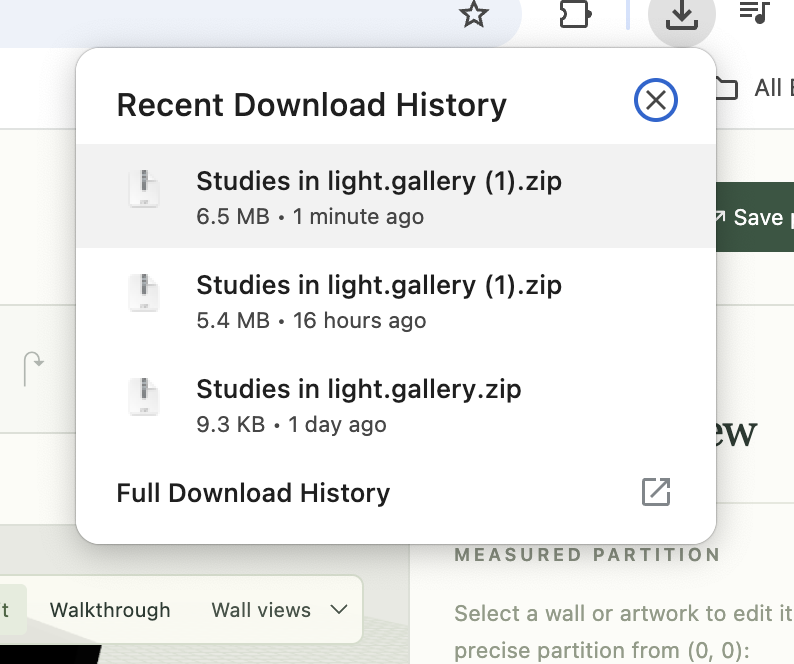
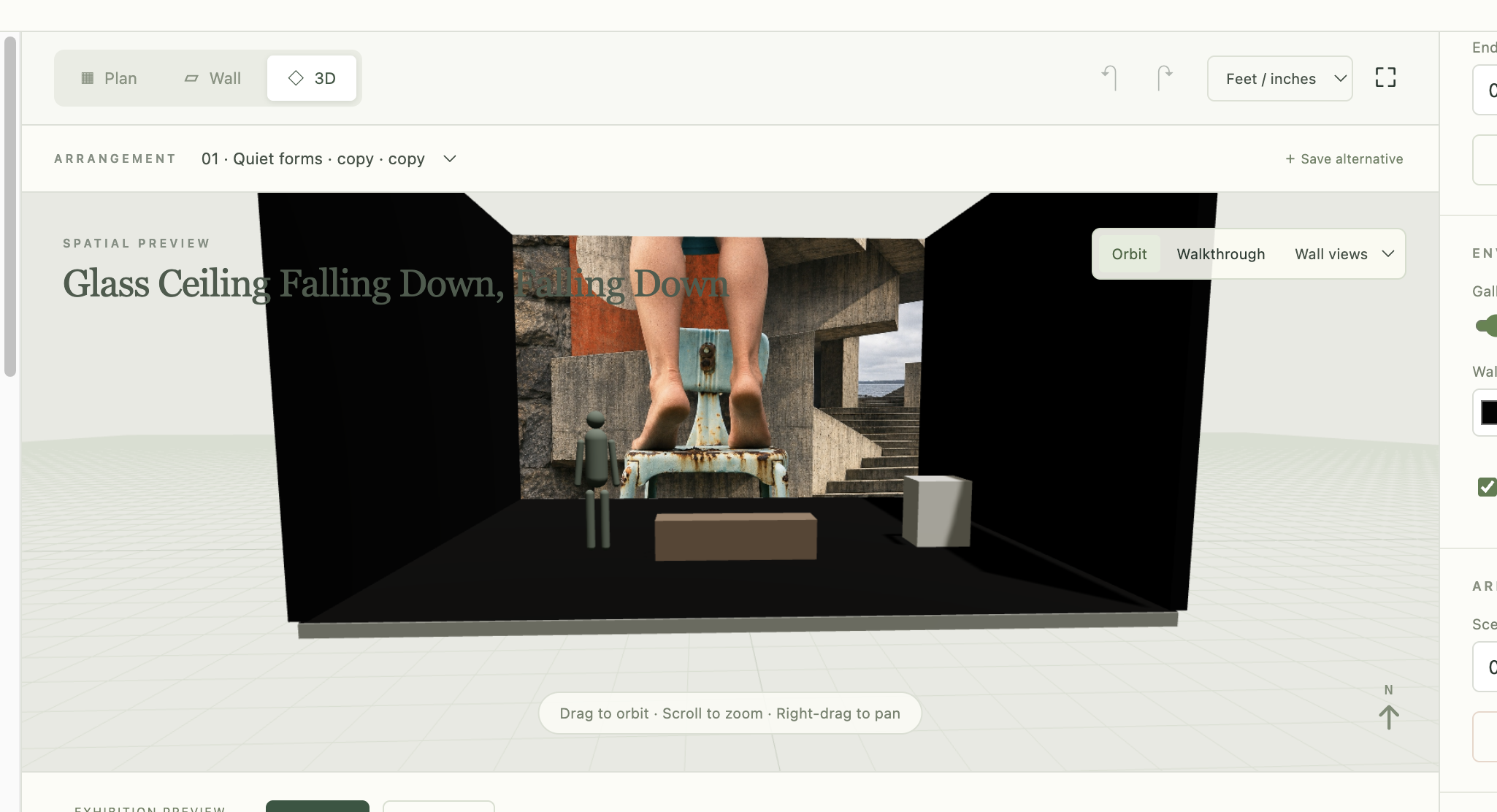
Saving images and how that all work, I tried to keep the original and not sure what file is what,
it appear I save but then I am not working from a blank slate
I want to change some of the things, for instance
having a ceiling option
having a better interface this is bunched up the titles seem to repeat, and are over the work area, and I want the 3D to fill the space a bit small.